Help Center
Welcome to the SmartList Help Center. This guide is designed to help you understand, use, and get the most value from SmartList Web, the browser-based version of SmartList. If you are new, start with the Getting Started section.
1. Getting Started
What is SmartList Web?
SmartList Web is a browser-based shopping list application designed to help users plan, organize, and manage their shopping tasks efficiently without installing any software.
Creating Your First List
- Open SmartList in your web browser.
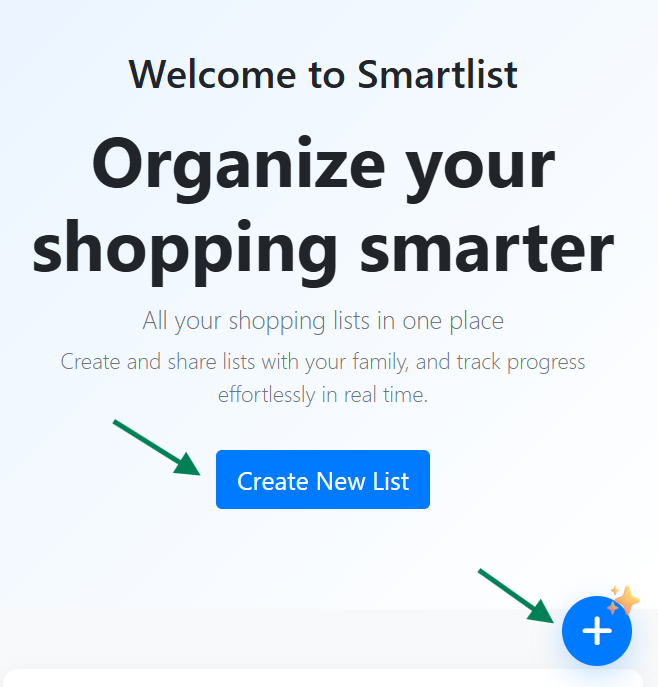
- Select Create New List.
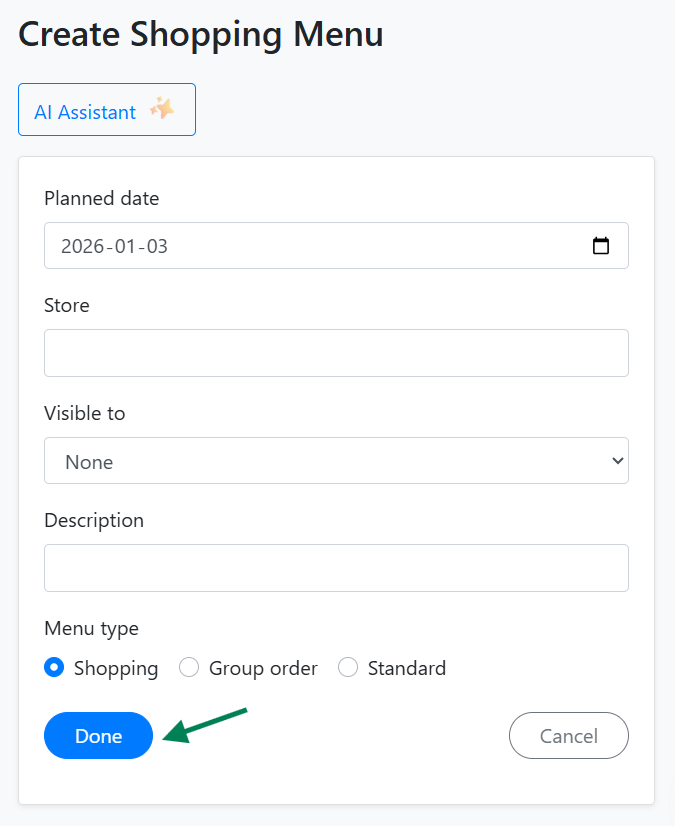
- Enter a name for your list (e.g., Weekly Groceries).
- Start adding items.
Adding Items
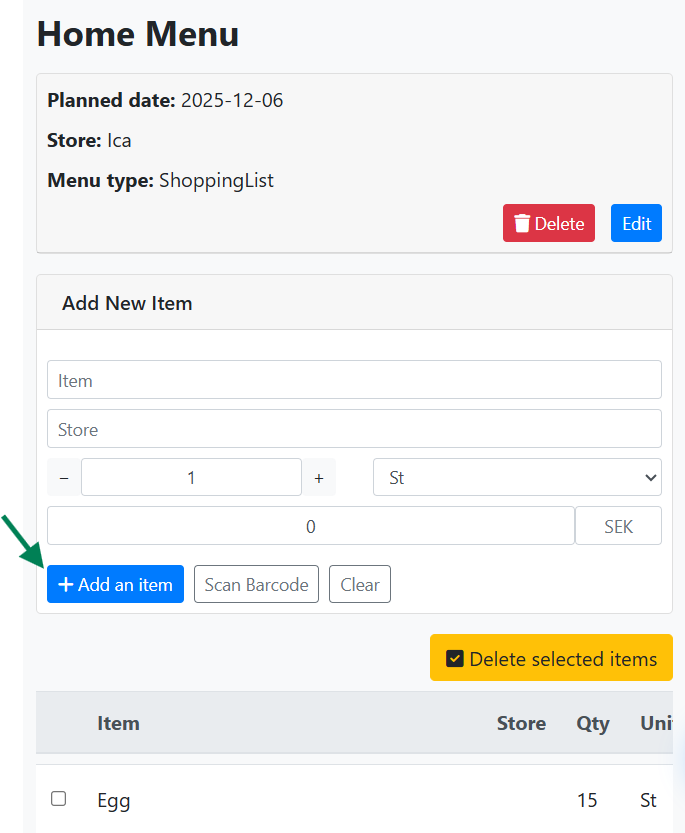
- Type the item name.
- Optionally set quantity or notes.
- Save the item to your list.
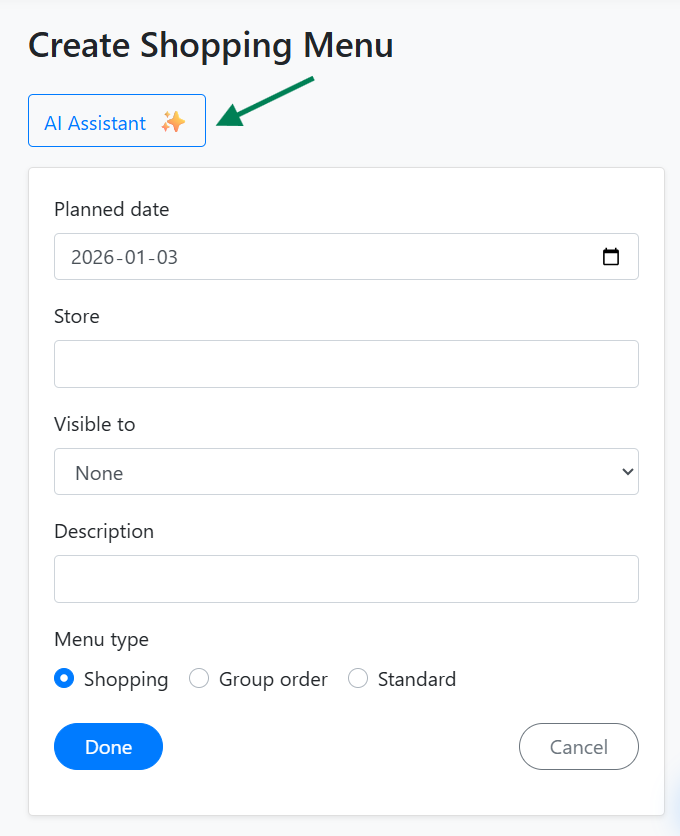
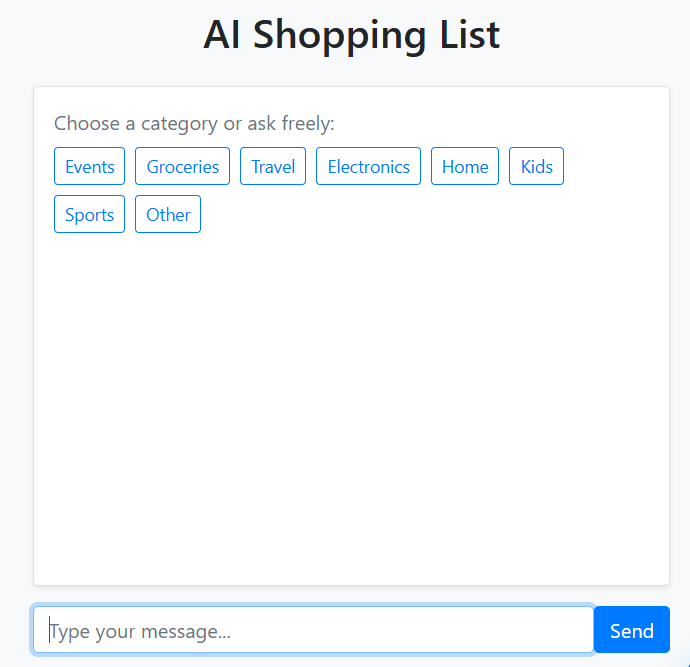
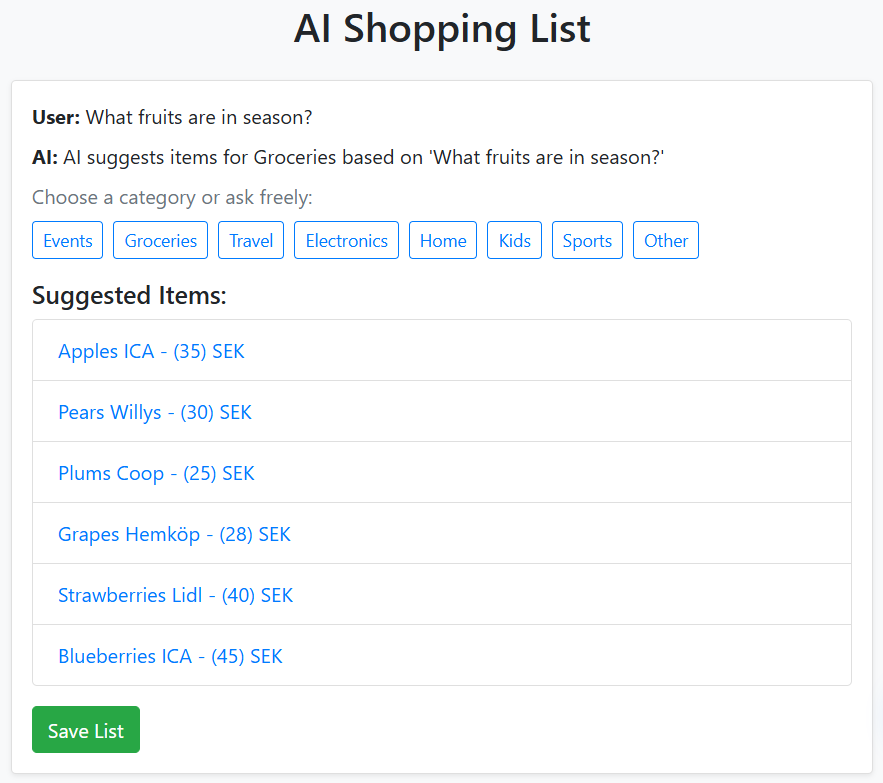
Help with Creating a New Shopping List
When creating a new shopping list, you can get help from the AI assistant. The AI assistant can generate a suggested shopping list for you based on your needs.
2. Managing Your Lists
Editing a List
- Open the list you want to modify.
- Add, remove, or rename items as needed.
- Changes are saved automatically.
Deleting a List
- Open the list.
- Select Delete List.
- Confirm the action.
3. Item Management
Marking Items as Completed
- Click or tap an item to mark it as purchased.
- Completed items are visually distinguished for clarity.
Editing or Removing Items
- Select the item.
- Update the name, quantity, or notes, or remove it entirely.
4. Tips for Efficient Use
- Create separate lists for different stores.
- Use notes to specify brands or preferences.
- Regularly clean up old or unused lists.
5. Frequently Asked Questions (FAQ)
A: This depends on your version of SmartList. If accounts are supported, signing in allows synchronization across devices.
A: If sharing is enabled, you can invite others to collaborate on the same list.
A: SmartList follows standard security practices to protect your data.
6. Troubleshooting
Website Not Responding
- Refresh the page or reopen the website.
- Ensure you are using the latest version.
Missing Items or Lists
- Refresh the page.
- Check if you are signed into the correct account.
7. Contact & Support
- Visit the SmartList support/contact page
- Contact the support team via email
Last Updated: 2026